So you just got a notification that someone responded to you after we sent them your pricing pamphlet... What now? This is the time for you to take action. |
But first, you need to know how to get to your unread messages.
Navigating to Your Unread Messages
Desktop:
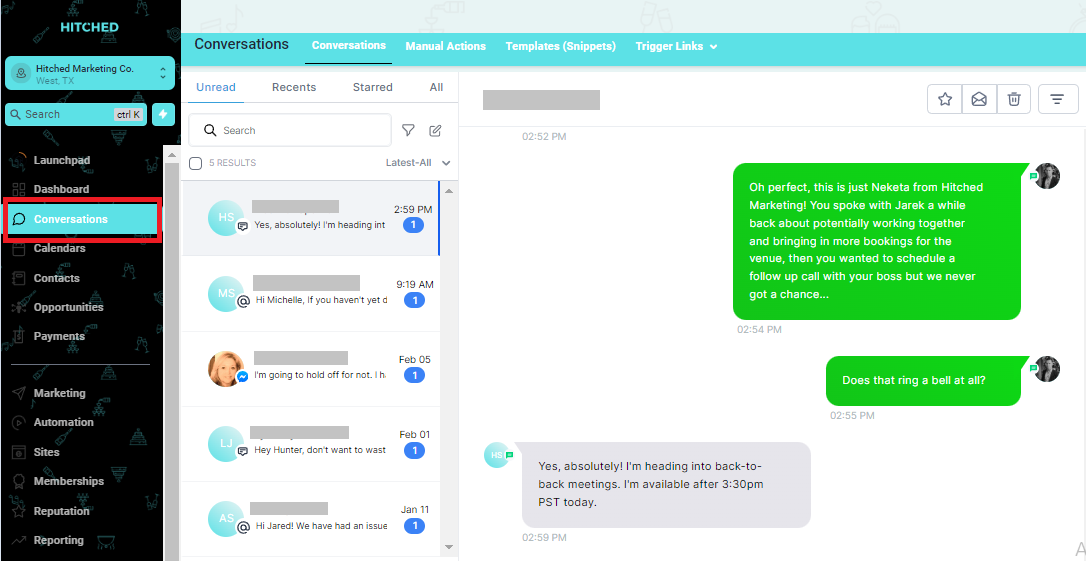
Mobile:
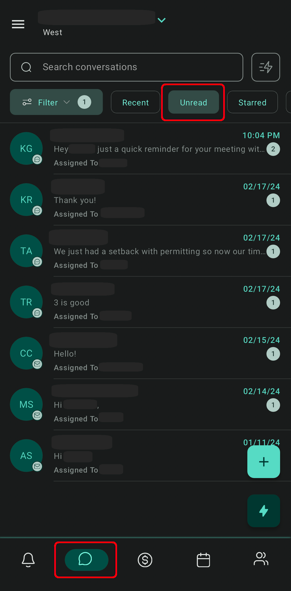
Keep in mind that for the mobile app, you will also receive a notification on your phone every time you get a new response. Once you click the notification, it will bring you directly to the conversation!
Responding to Your Messages
Now that you know where your conversations are, now it's time to hop in. Your main goal is to always verify their response and then simply ask them to schedule a tour.
Luckily, we have created multiple response templates for you to use that have been proven to drive in tours, cut down the amount of back and forth between you and the client, and reduce the amount of time it takes for you to manually type a response.
Accessing Templates
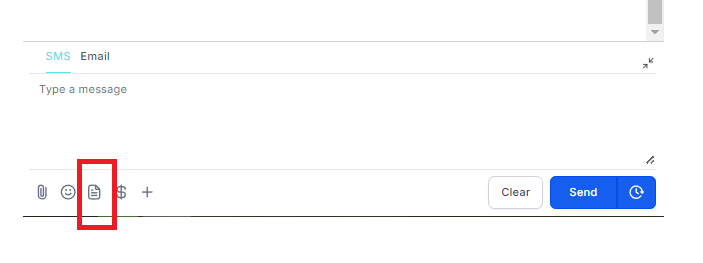
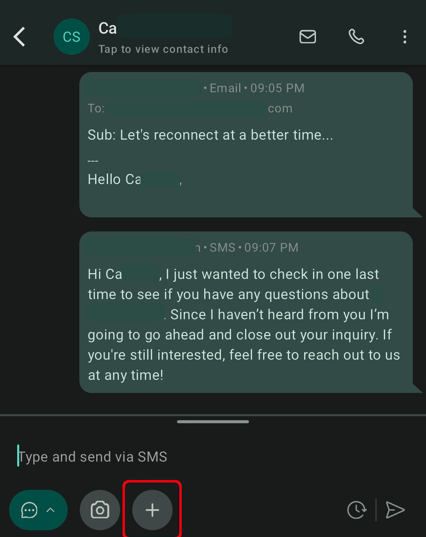
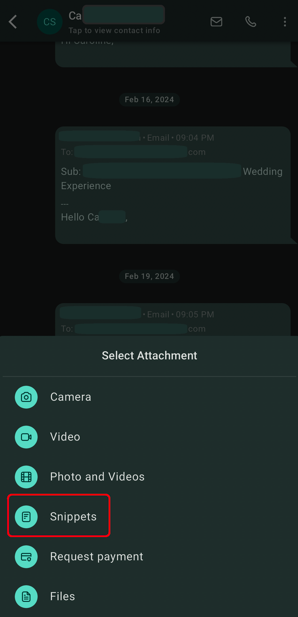
Inside of the conversation you will see an icon right below where you type your message. This is where you can select the template of your choice to use based on the specific sales conversation.
Desktop:
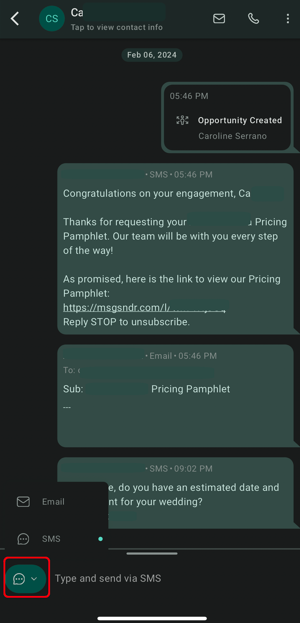
Mobile:
Choose reply method (SMS or Email). Click "+" icon then "Snippets".
Responding with Templates
Once you click the templates tab, a list of response templates will appear for you to use based on what the client responded, and if their date/guest count is available.
All you have to do is select a template that fits the conversation, edit the message (if needed) then click send.
Here is a screenshot of the text templates that we believe are the best responses to get more tours scheduled on your calendar. They are already in your account. Now all you have to do is use them!
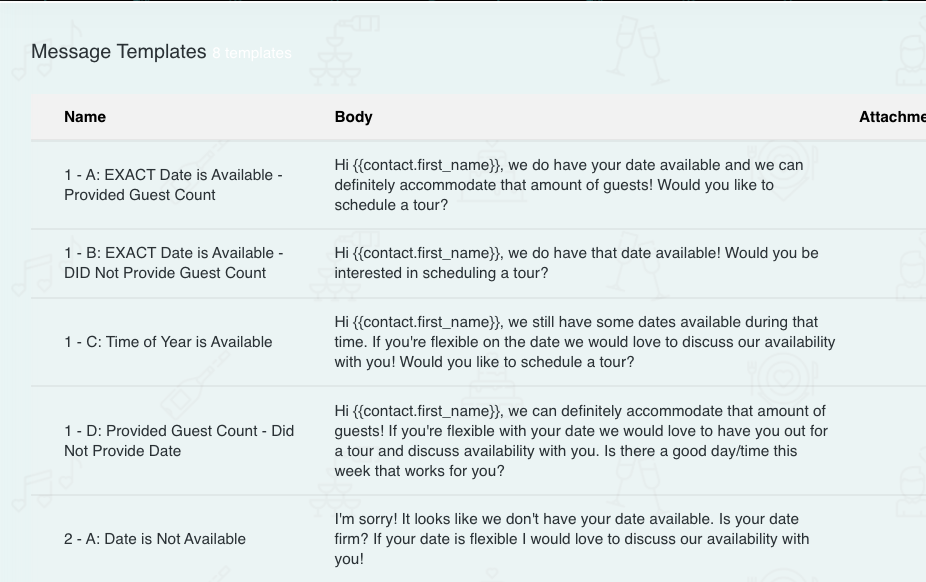
As you can see, the call to action is to always get them in the door for a tour. They've seen the pricing, they know what's included, they've read the FAQ's, now it's time to seal the deal and set them up for a site visit.
If you would like to know how to make your own text and email templates, CLICK HERE.
If you would like to know how to put a contact on DND, CLICK HERE.
If you would like to learn how to use tags, CLICK HERE.