So you and a potential client have an agreed time for them to come in for a tour. Now it's time to get them scheduled! |
Here is how to schedule a tour on your Desktop and Mobile App!
There are quite a few ways to schedule a tour on your desktop and mobile app. In this article we will be showing you all of the different options you have when scheduling a tour.
DESKTOP:
Option 1: "Conversation" (recommended)
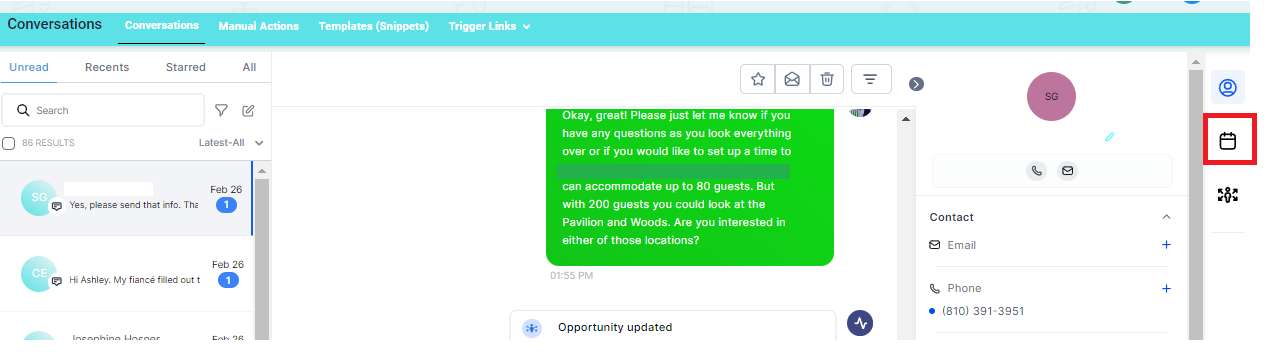
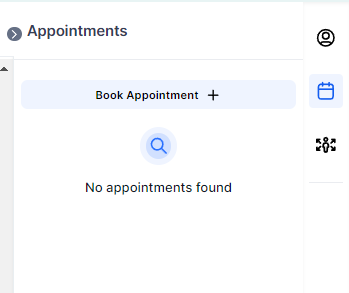
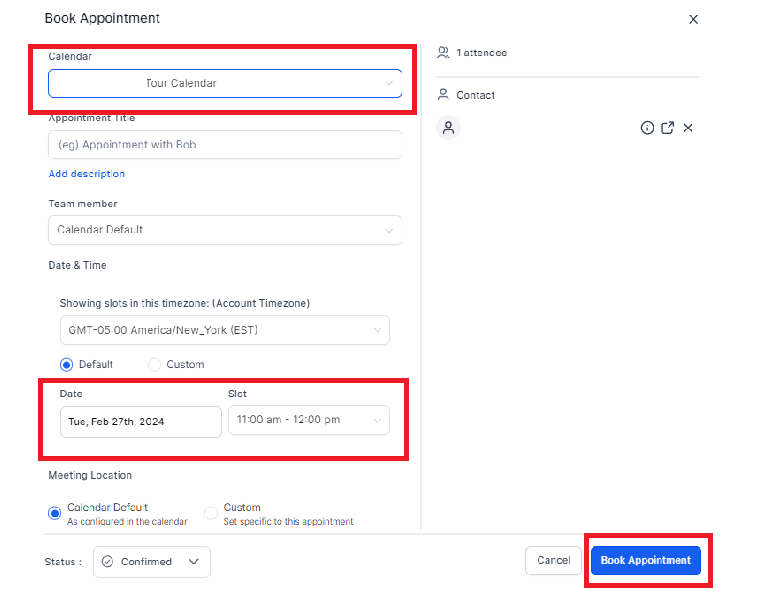
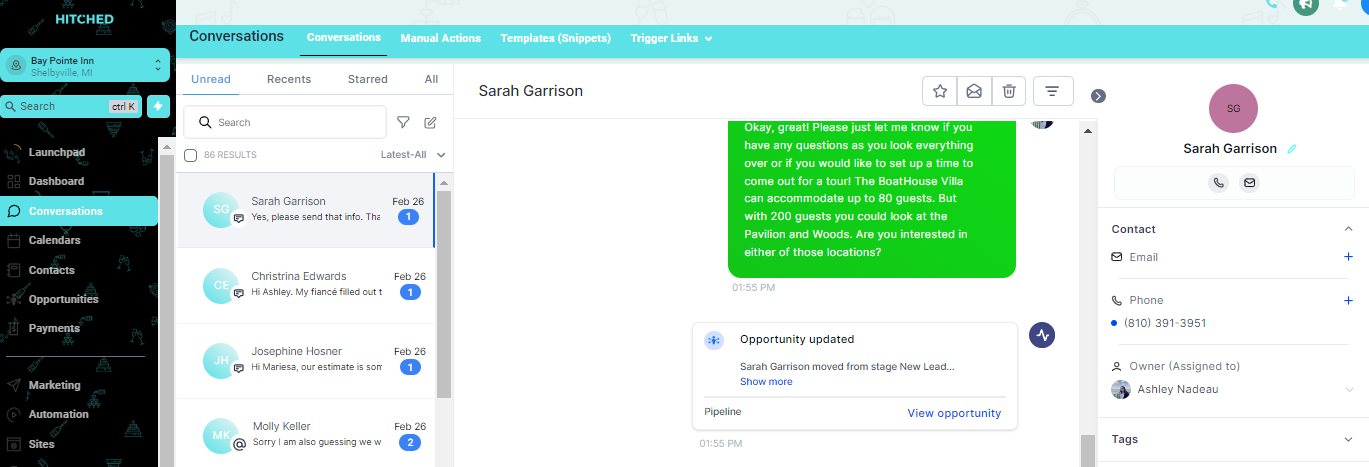
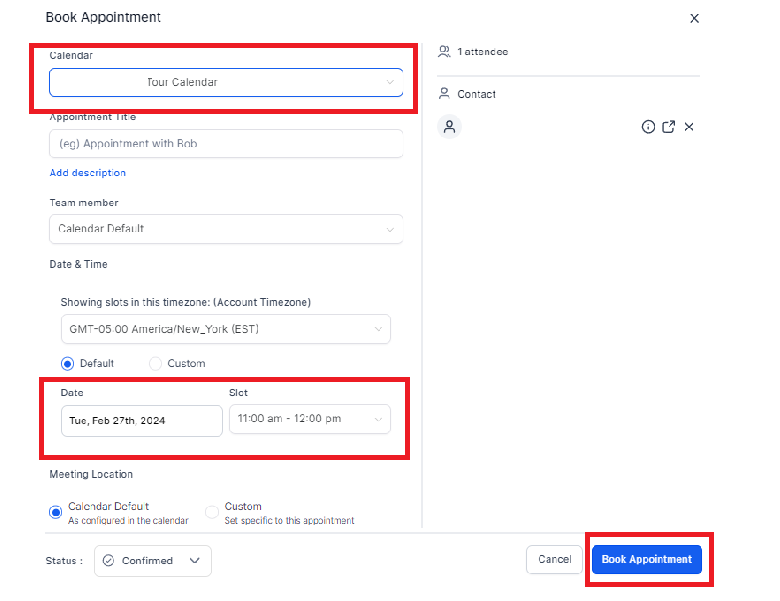
In the conversation tab, select the "calendar icon" at the right-hand corner of the screen > Click Book Appointment + >> Ensure the calendar selected is "Tour Calendar" > Select a Day/Time > Click Book Appointment
Option 2: Contacts Tab
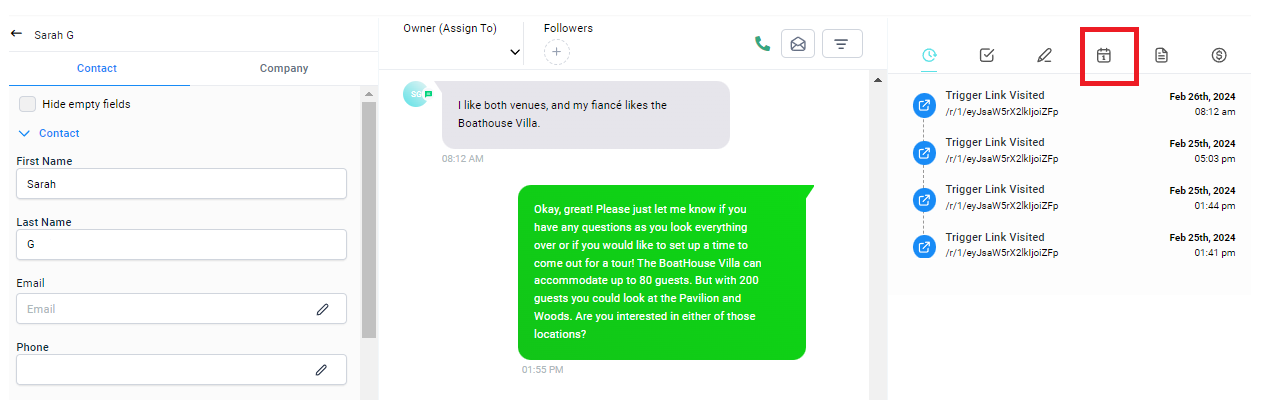
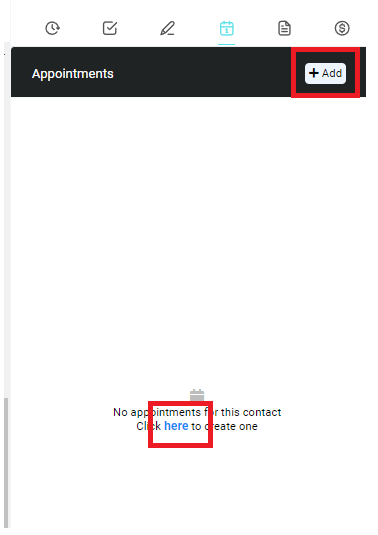
Inside the conversation tab, after clicking the contact's initials, you will be redirected to the Contacts tab, click the calendar icon >> Add+ or Click HERE at the bottom >> Ensure the calendar selected is "Tour Calendar" > Select a Day/Time > Click Book Appointment
Option 3: "Quick Menu" (for call-ins)
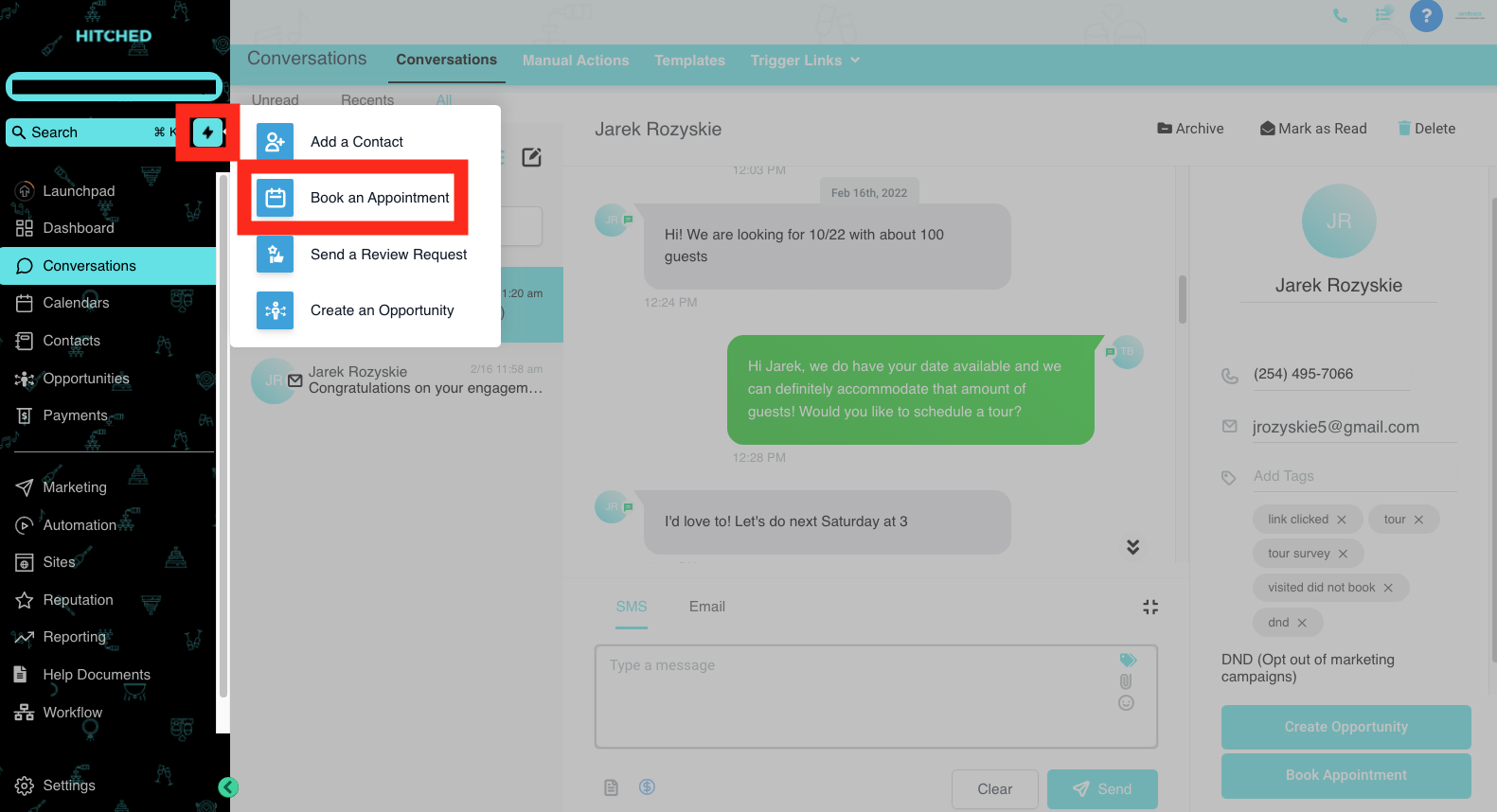
Select the lightning bolt next to your search bar in the top left corner of your screen > Select Book Appointment >> Select or add a new contact > Select tour calendar > Change Date/Time > Click Book Appointment
Option 4: "Calendar > Appointments"
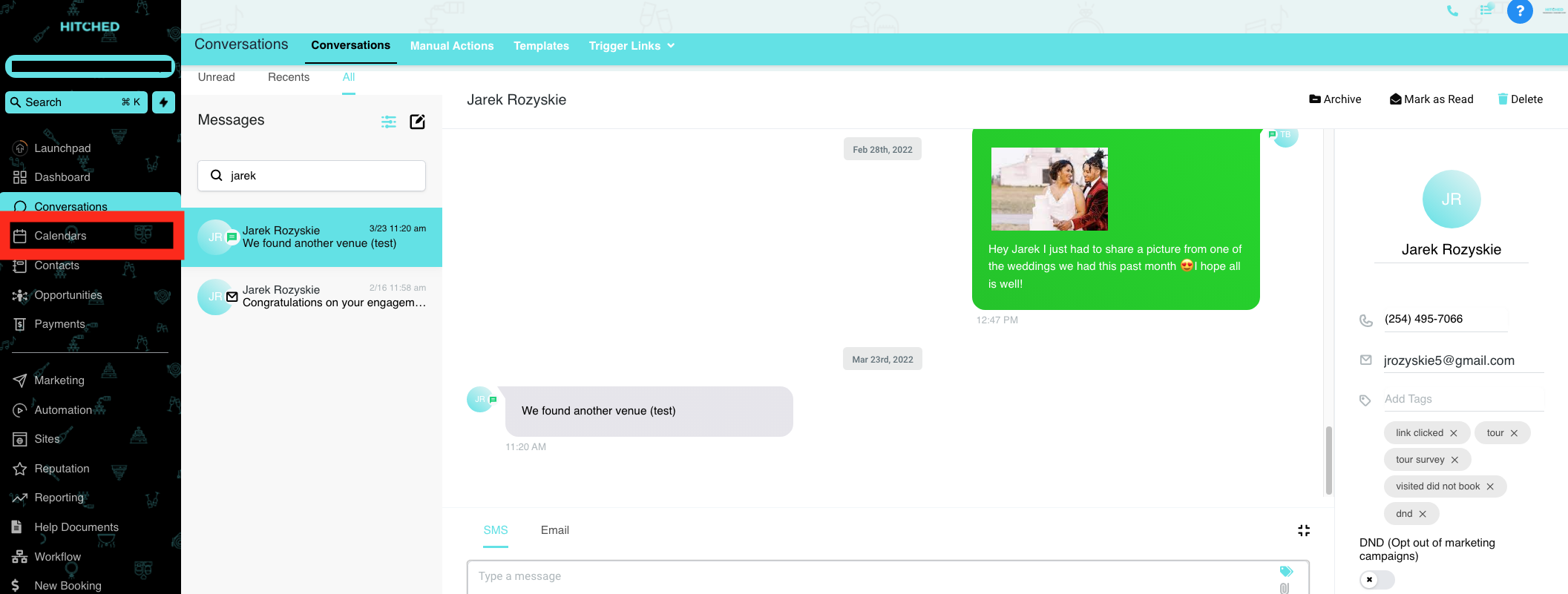
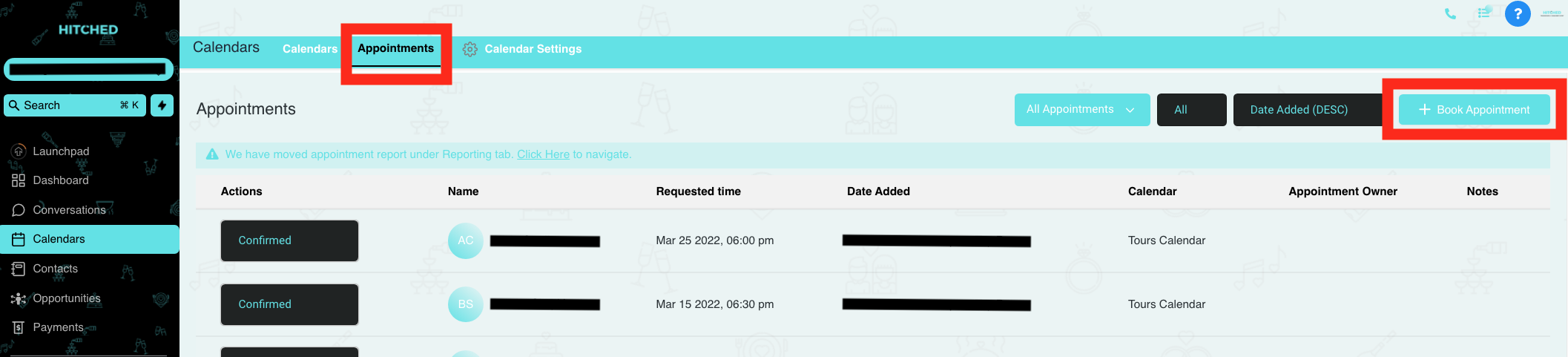
Select the Calendars tab in the left menu > Select appointments in the top menu > Select Book Appointment Button > Select or add a new contact > Select tour calendar > Change Date/Time > Click Book Appointment
MOBILE:
Option 1: "Conversation" (recommended)
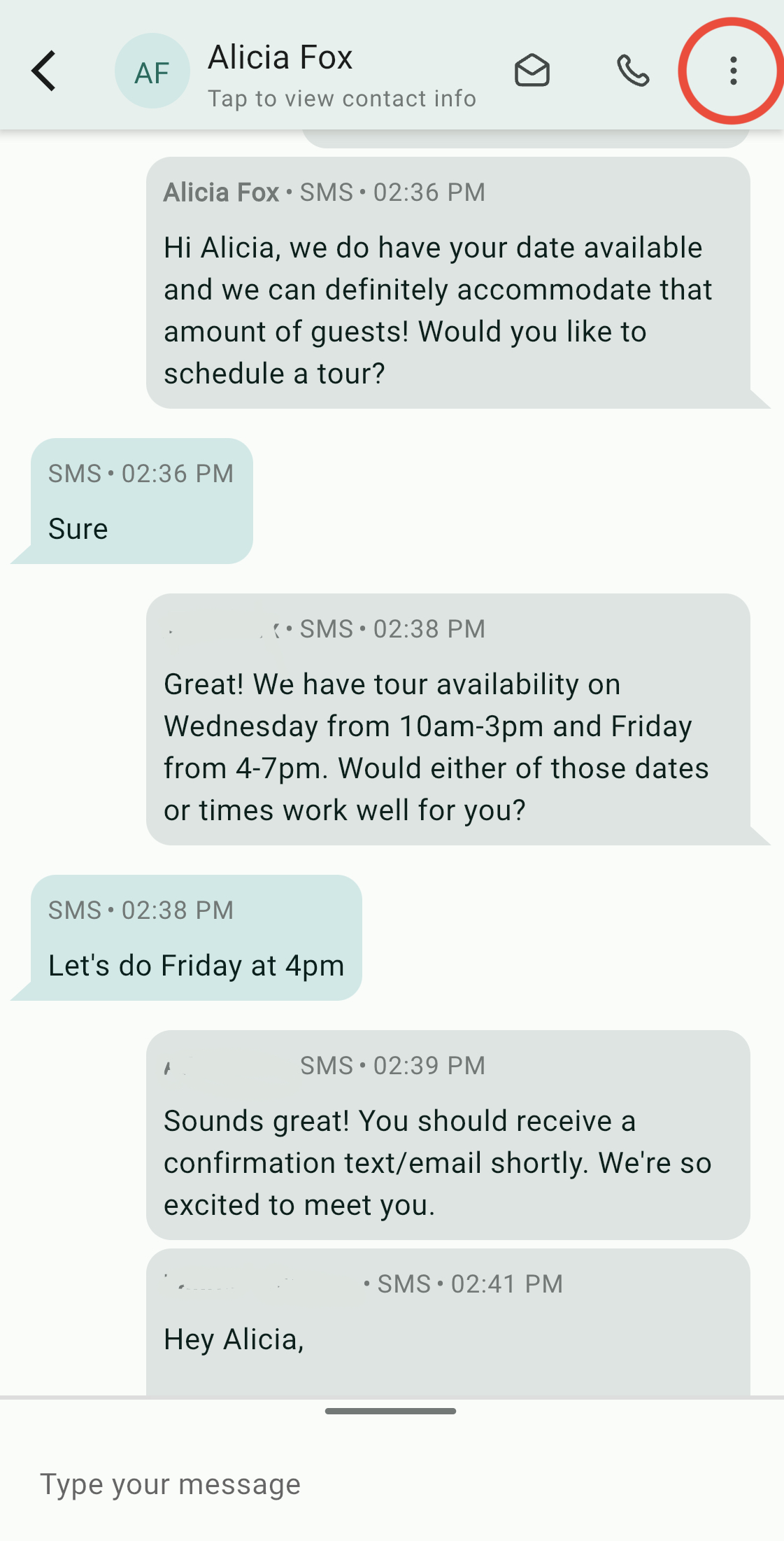
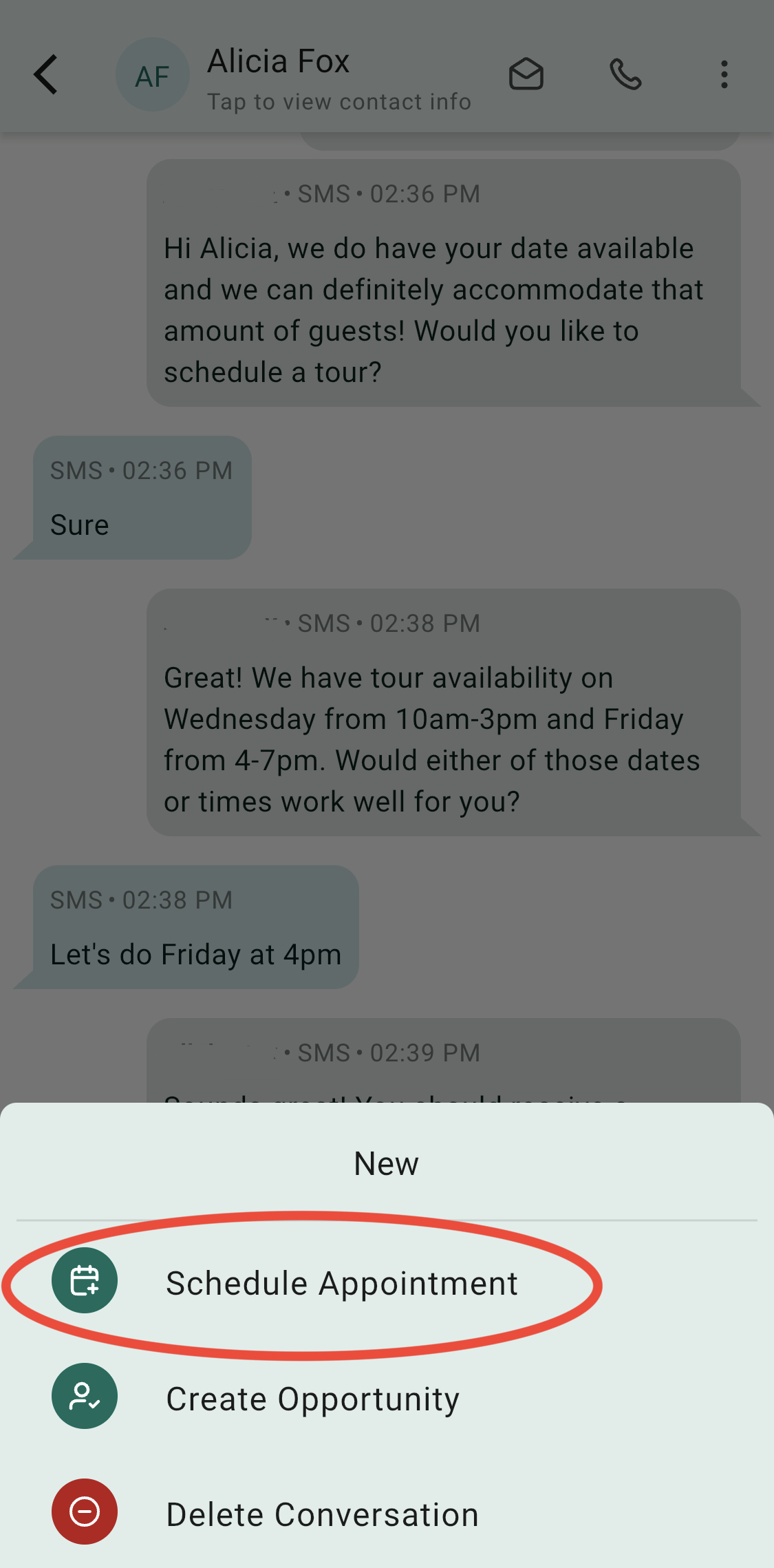
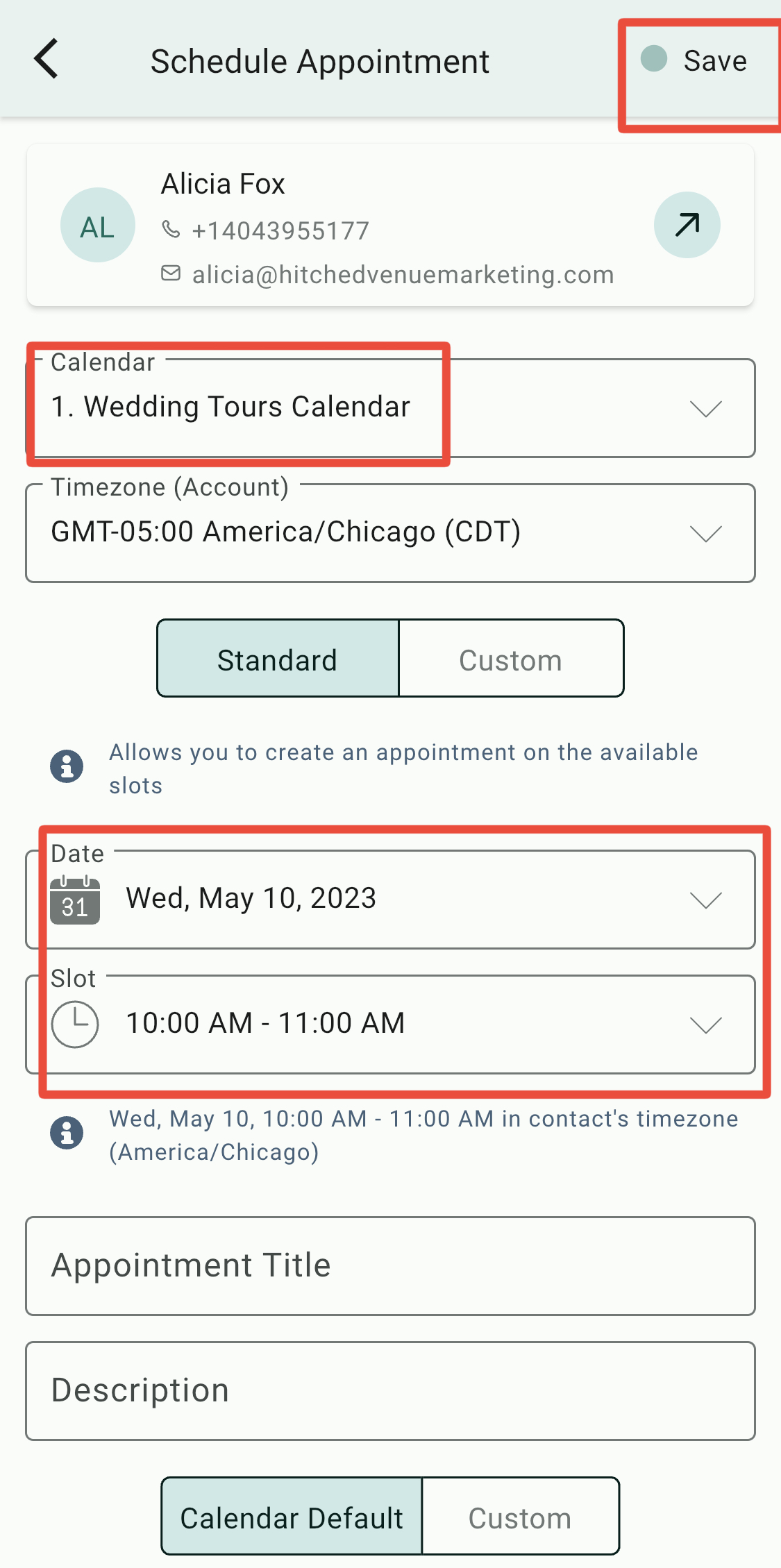
Inside of your conversation > Select the 3 dots in the top right-hand corner of your screen > Select Schedule Appointment > Select Tour Calendar > Change Date/Time > Click Save
Option 2: "Calendars" (Scheduling Call-Ins)
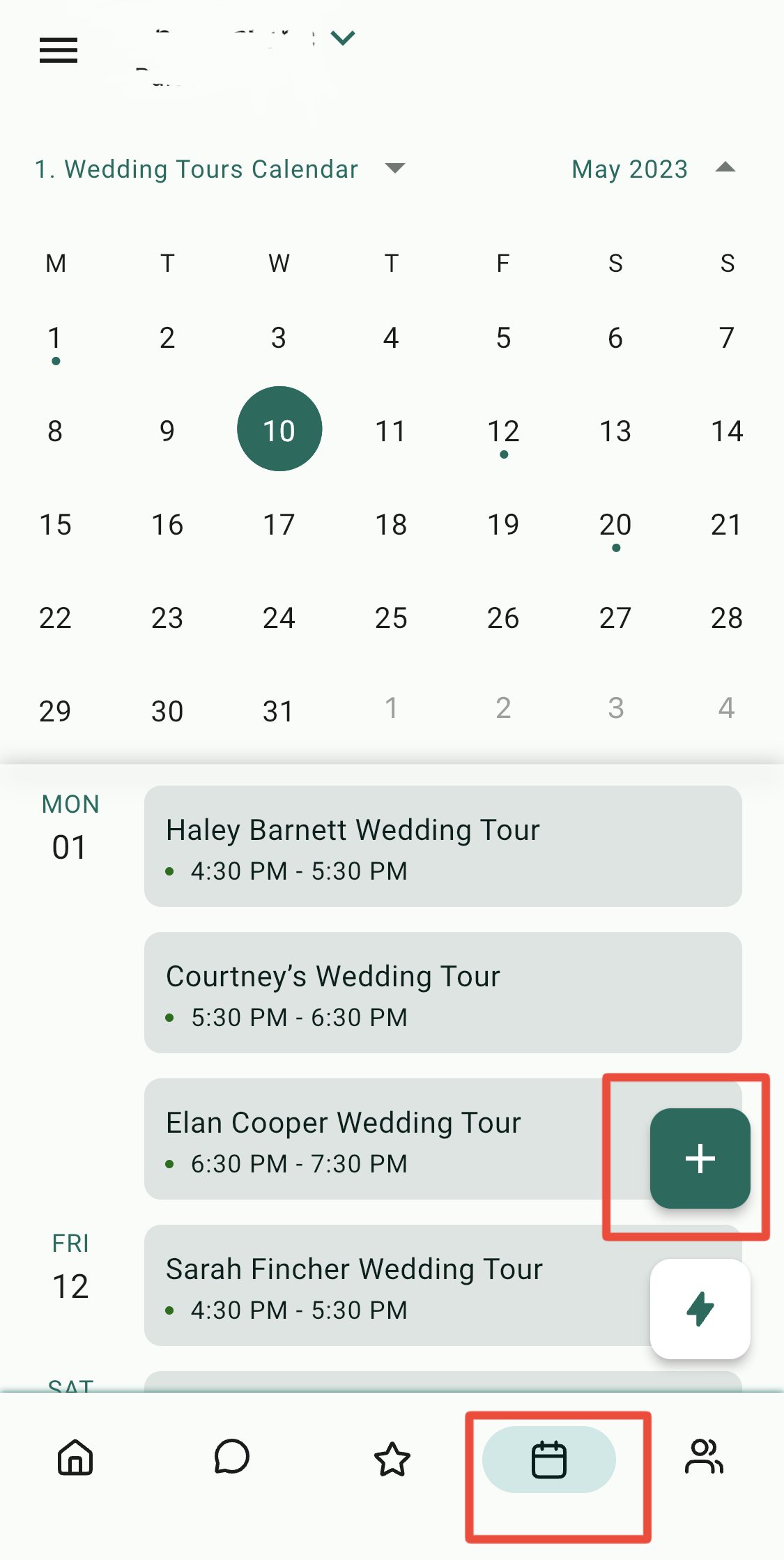
Click your calendar in the bottom menu > Select the Green "+" Button > "Schedule Appointment" > Find contact > Select Tour Calendar > Change Date/Time > Click Save