So sometime before a scheduled tour, your prospect tells you that something came up and that they need to cancel. No worries! In this article, we will be going over the best practices for canceling a tour using your Desktop and Mobile App! |
Quick Notes: Just know that when a tour is canceled, you're now able to book a different appointment at that scheduled time.
Also, the contact will be moved to the "Cancelled" stage in the pipeline and funneled into a "Cancelled" campaign, that will follow up with them in 2 days to ask them if they'd be interested in rescheduling. So if someone responds "We found a different venue so we need to cancel our tour", be sure you put them on DND sometime before or after you cancel the tour, as it would be inappropriate to send them a text asking them to reschedule whenever they've already expressed that they're no longer interested in touring your venue.
When canceling a tour, all of these options are incredibly easy to exercise and we suggest you know how to cancel a tour using each option.
How to Cancel a Tour: Desktop
There are quite a few ways to cancel a tour on the desktop, so in this article, we will be going over the most popular ones that we tend to use to cancel a tour.
Option 1: Calendars
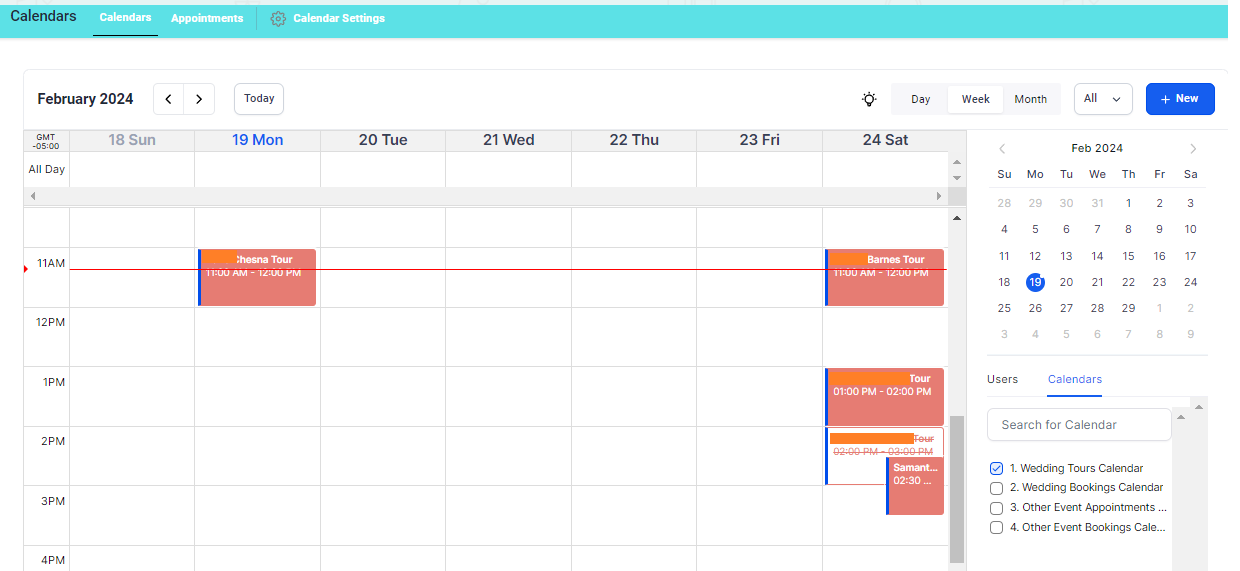
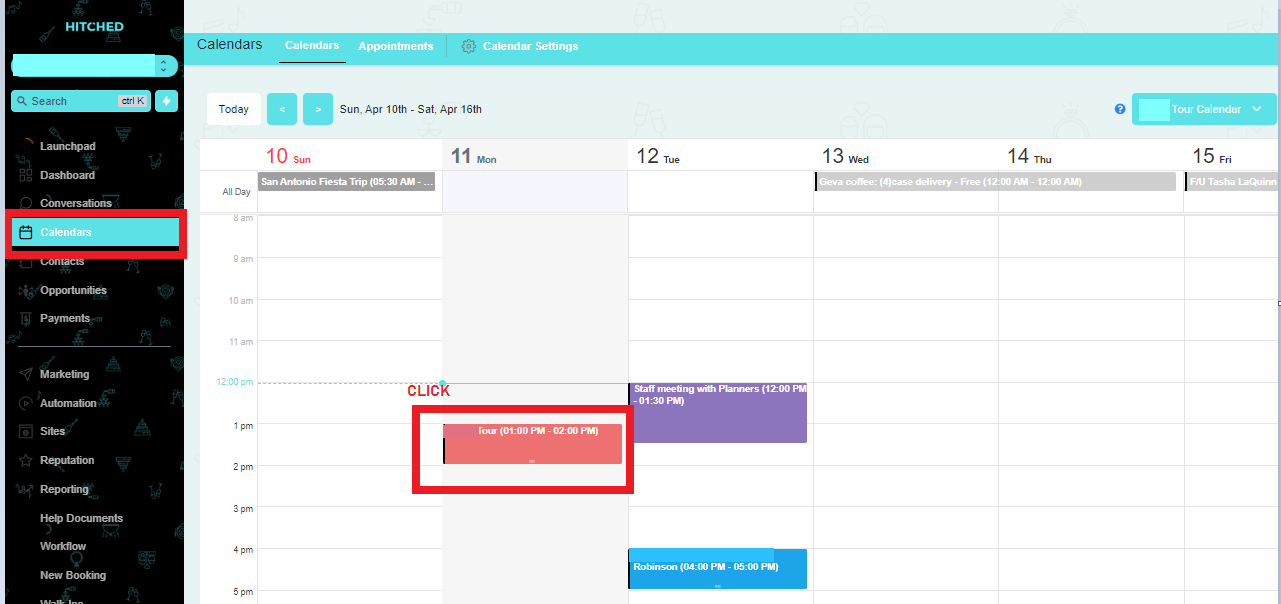
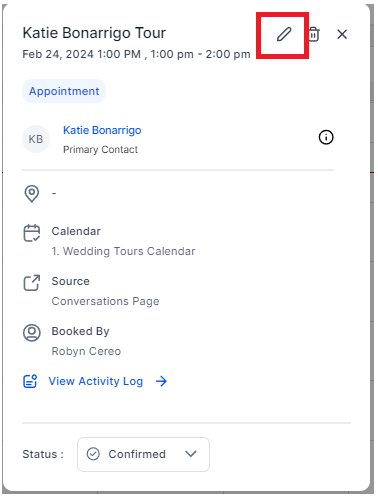
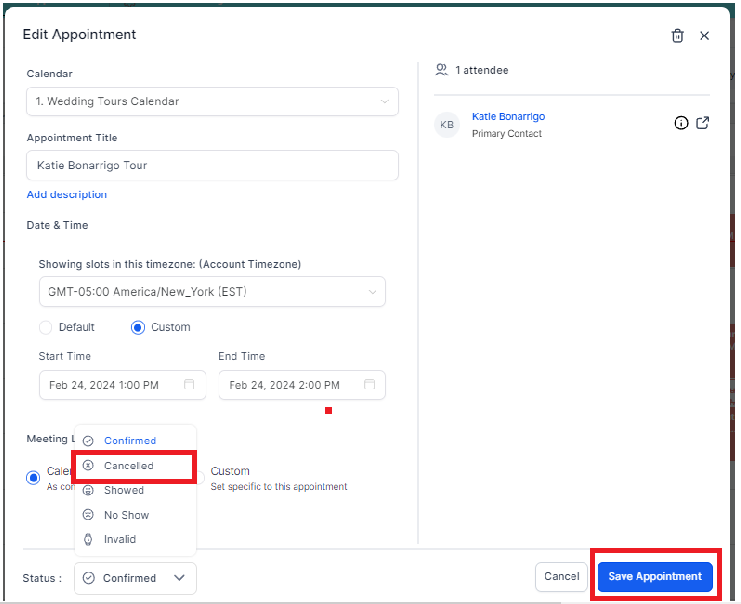
Go to Calendars in your left menu >>tick the box for the Wedding Tour Calendar. Find the tour you would like to cancel and click the blocked-out time slot to edit the appointment >> click the pencil icon to edit >> Click the drop down arrow to change the status of the appointment from "Confirmed" to "Cancelled" >> Click Save Appointment.
Option 2: Calendars > Appointments
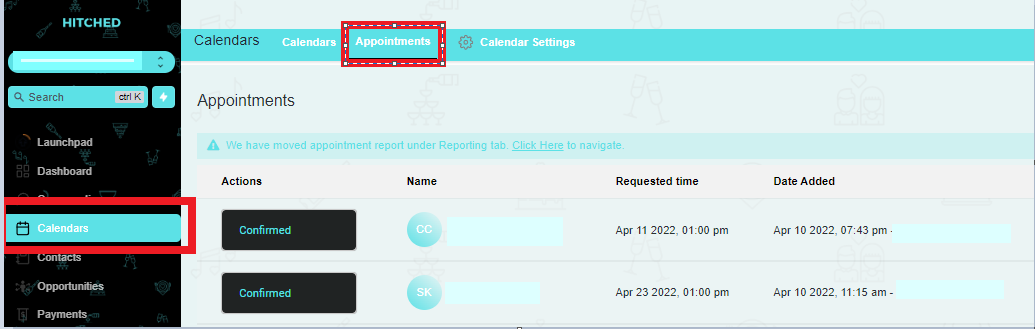
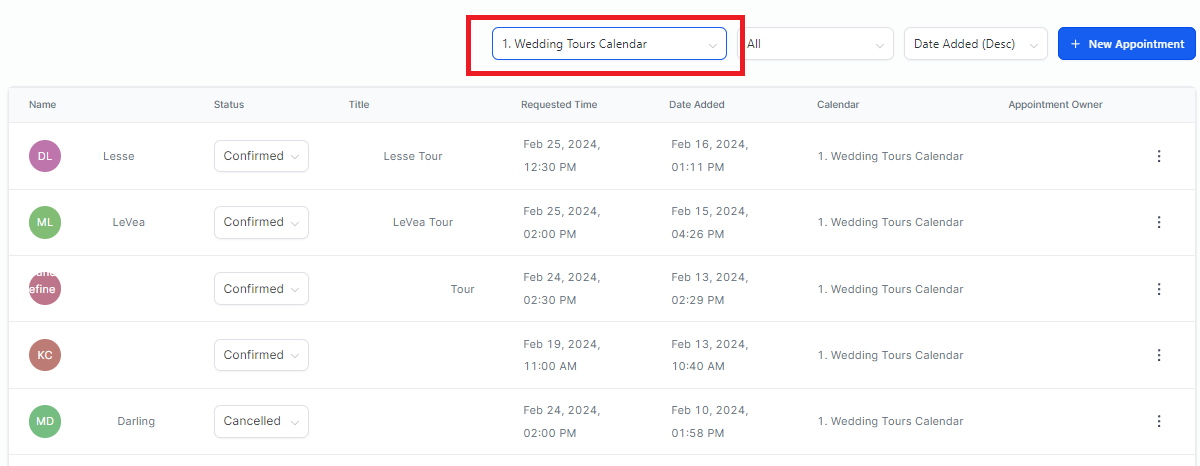
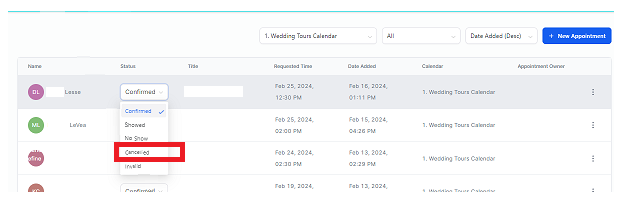
Go to "Calendars" in your left menu >> Select the "Appointments" tab in the top menu >> Make sure that you are in the Wedding Tours Calendar >> Find the tour you're looking to cancel >> Select the drop-down >> Change the Status from "Confirmed" to "Cancelled"
Option 3: Conversation > Contact
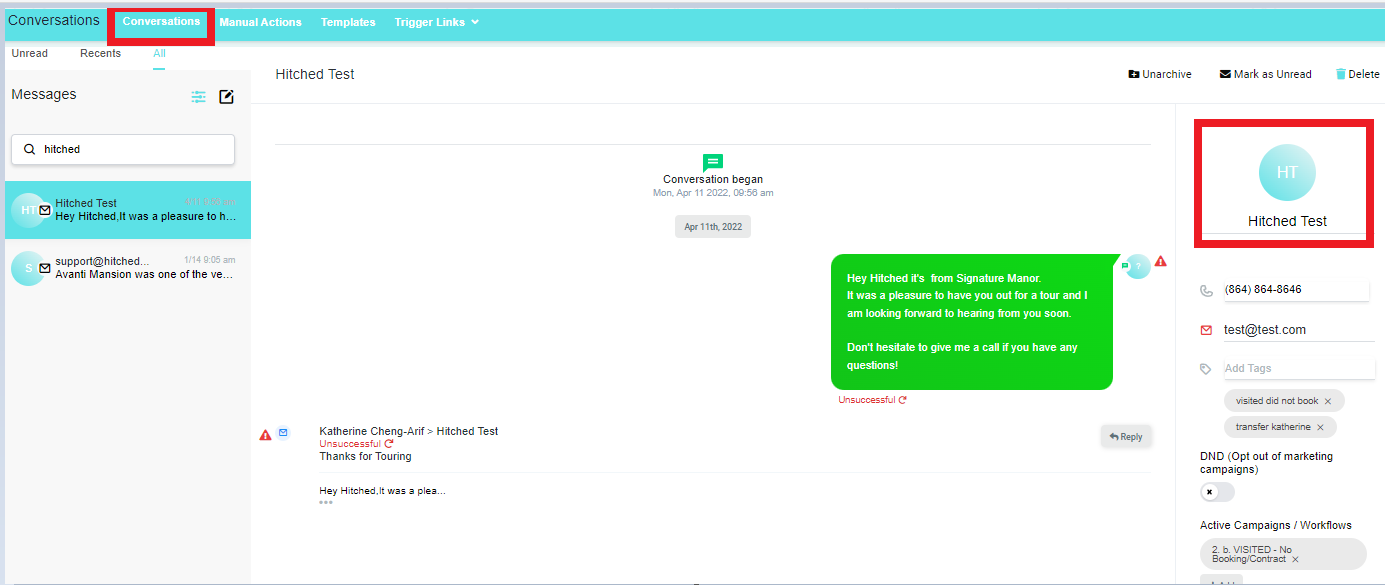
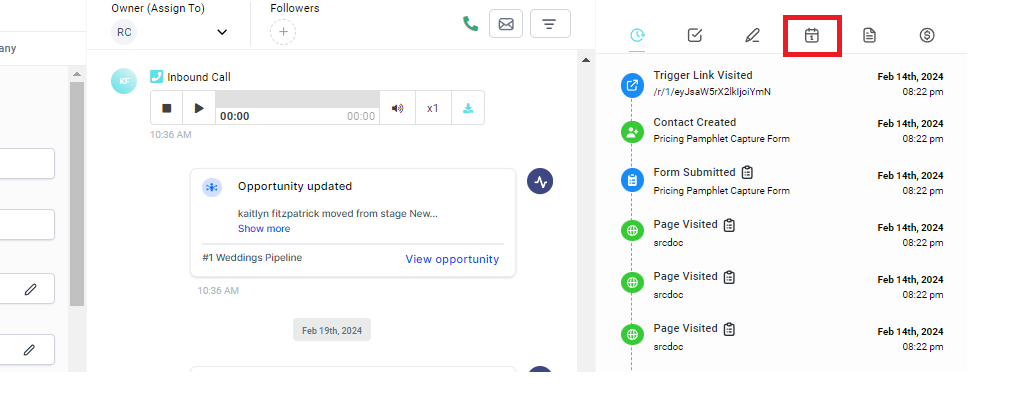
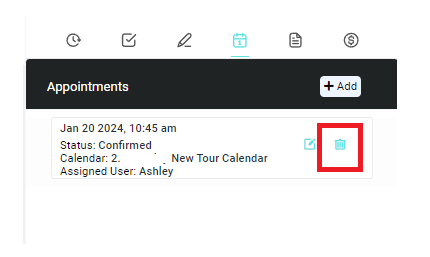
Inside the conversation with the contact, locate and click the colored bubble with the contacts Initials on the right side of the screen >> This will open a more detailed view of the contact. On the right side of the screen, click the calendar icon >> Find the appointment you want to cancel and click the trashcan icon and confirm that you want to cancel the appointment.
How to Cancel a Tour: Mobile App
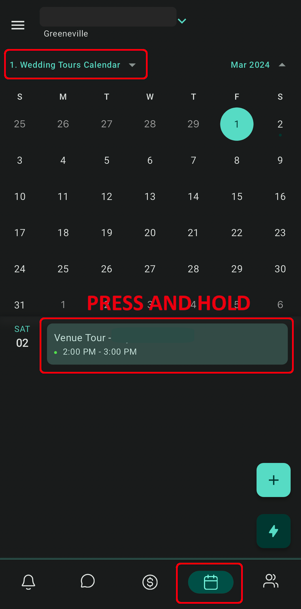
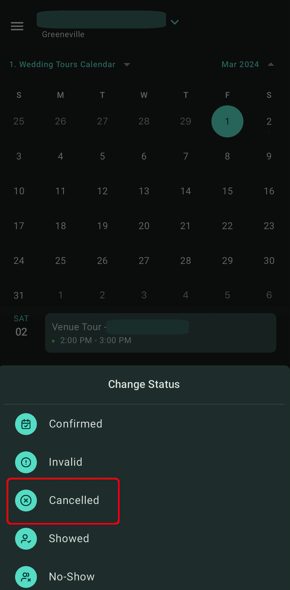
BEST OPTION: Calendar
Select the Calendar Icon in the bottom menu >> Select the proper tours calendar >> find the tour that you would like to cancel >> PRESS AND HOLD THE APPOINTMENT >> change the status to "Cancelled"