So sometimes before a scheduled tour, your prospect tells you that something came up and that they need to reschedule.
No worries! In this article, we will be going over the best practices for rescheduling a tour using your Desktop and Mobile App!
When rescheduling a tour, all of these options are incredibly easy to exercise and we suggest you know how to reschedule a tour using each option.
How to Reschedule a Tour: Desktop
There are quite a few ways to reschedule a tour on the desktop, so in this article, we will be going over the most popular ones that we tend to use to reschedule a tour.
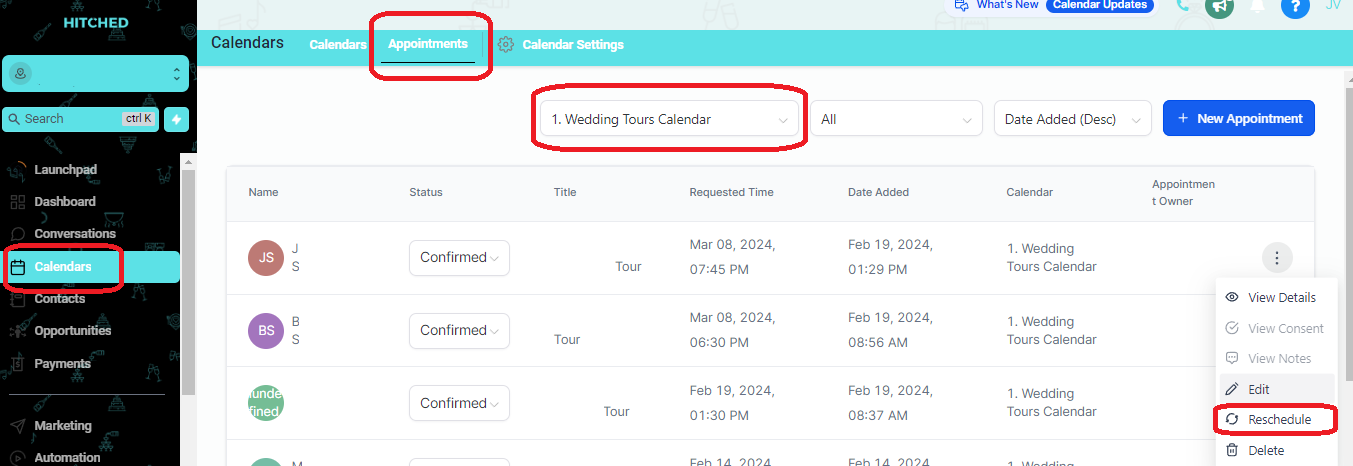
Option 1: Calendars > Appointments
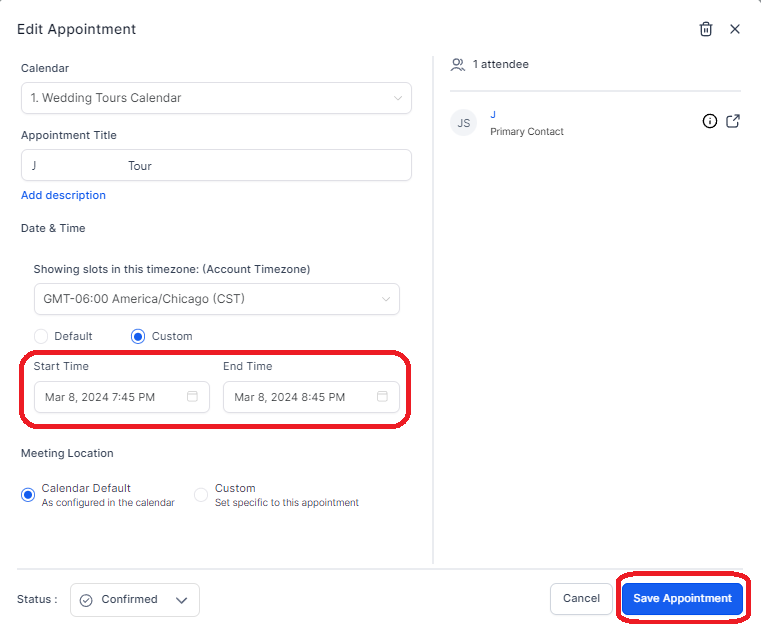
Go to "Calendars" in your left menu >> Select the "Appointments" tab in the top menu >> Find the tour you're looking to reschedule >> Select the 3 dots >> Select "Reschedule" >>Choose which Calendar to book>>Change the Date/Time of the tour >> click the green Save Appointment button at the bottom.
Option 2: Conversation > Contact
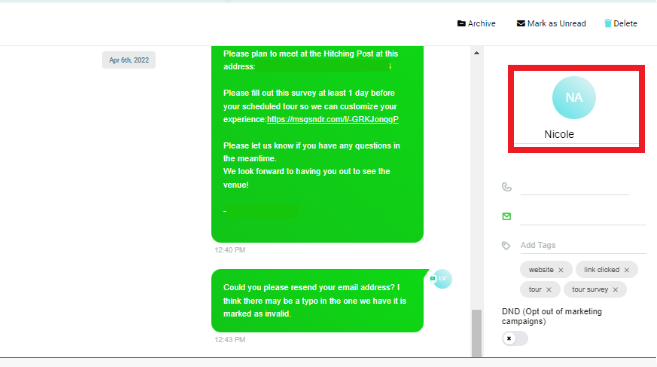
Inside the conversation with the contact, locate and click the calendar icon on the right side of your screen >> Find the appointment you want to reschedule and click the pencil icon to edit the appointment. Set the rescheduled time/date of the tour and click the Save Appointment button.

How to Reschedule a Tour: Mobile App
BEST OPTION: Calendar
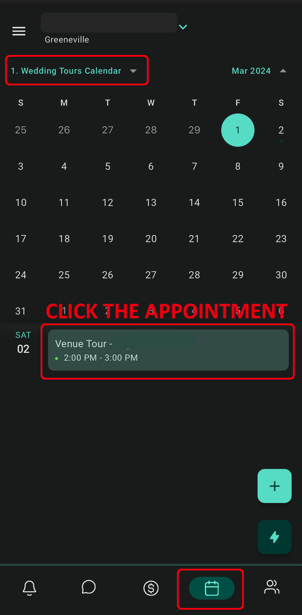
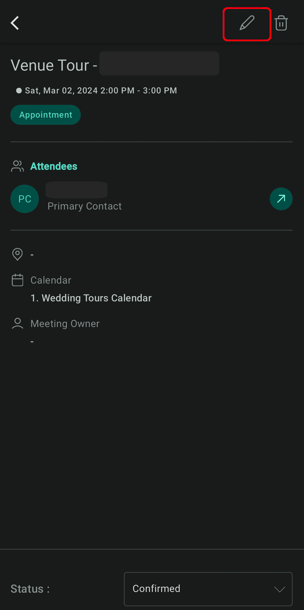
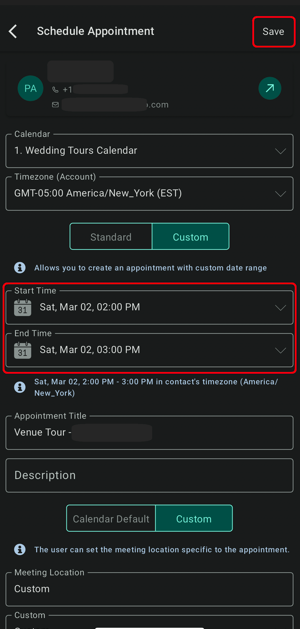
Select the Calendar Icon in the bottom menu >> Select the proper tours calendar >> find the tour that you would like to reschedule >> CLICK THE APPOINTMENT >> Click the "pencil" icon then set the new time/date of the appointment and Save.