If you would like to follow up or just need to send a text or email to a lead at a later date or time, you can schedule it to send in the Conversation tab. We usually do this for contacts that we set to "Not yet ready" because we don't want to forget to follow up on the day or month that they told you they would get in touch.
To send a scheduled message:
Desktop Version:
- Make sure that you are switched to your preferred channel (SMS, Whatsapp or Email) before typing in your message. Note: You need to connect your Whatsapp account to be able to send messages via Whatsapp.
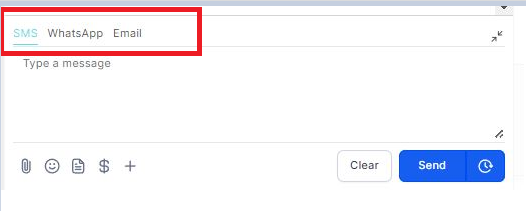
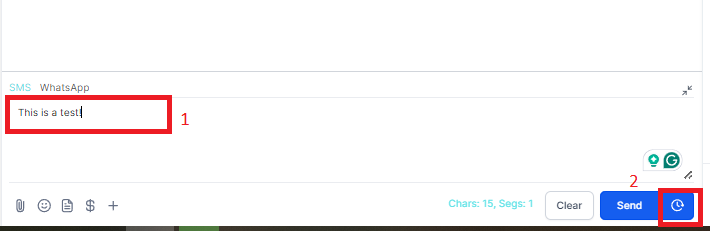
- Type the message you'd like to send (or use the template/snippets) and click the clock icon below. But if you're sending an email, don't forget to add the Subject line.
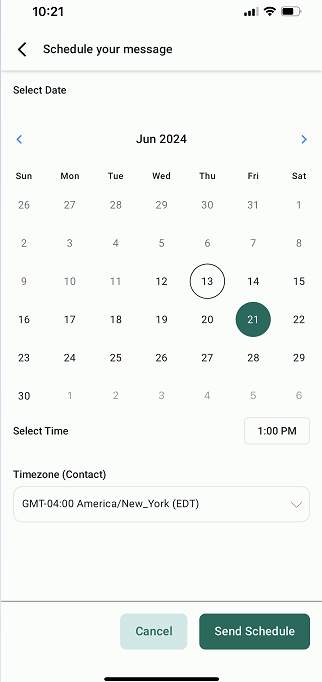
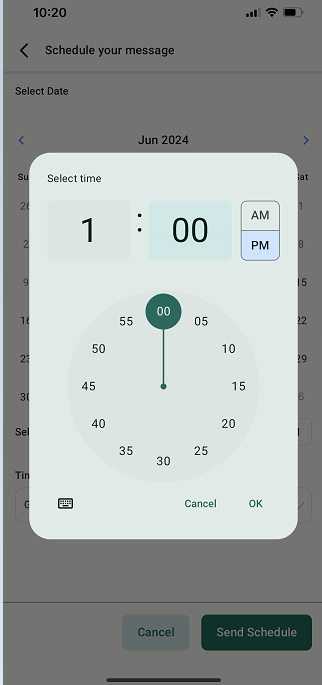
- Set the Date and time then click the Send Schedule button. The timezone should always be your account timezone. Click Send Schedule

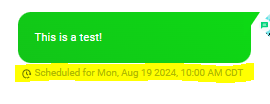
- After sending, the scheduled date & time will show at the bottom of the message.
Mobile App:
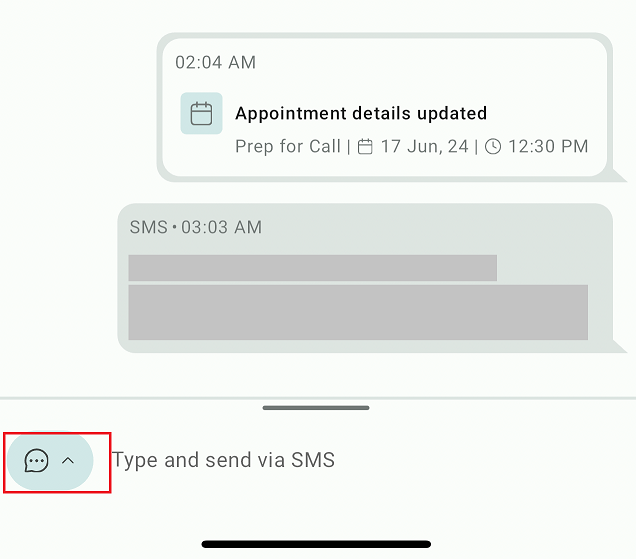
- The same steps to follow on the app, just click the dropdown arrow to choose from SMS or email.
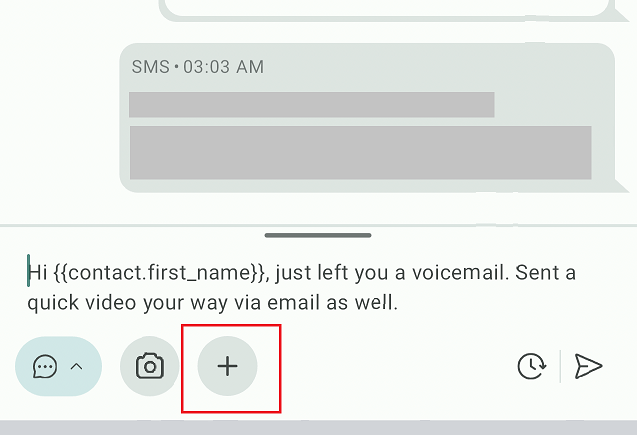
- If you're going to use the snippet, just click the + icon and select the snippet you would like to use.
- Set the Date and time (timezone should always be your account timezone) then click the Send Schedule button. Click "Send Schedule".