Within your conversations, you may be seeing a variety of ways that we categorize the status of your messages:
Unread - these are messages that you haven't replied to yet
Recent - in your Recents tab, you will find all of the conversations that you've had with people that have actually responded to you. Using your Recents tab is a great way to evaluate your previous sales conversations
Starred - you can see all the messages that you have marked as starred in this section
All - you can locate all your text and email messages here, be it Read, Unread or Starred
Marking Messages as Read / Unread:
There are certain instances where you may need to MANUALLY mark messages or calls as Read. For example, someone "liked" a message using an iPhone. This message doesn't necessarily need to be responded to, but you don't want to keep it in your unread section.
MOBILE
There are 2 Options on how to mark a conversation as read.
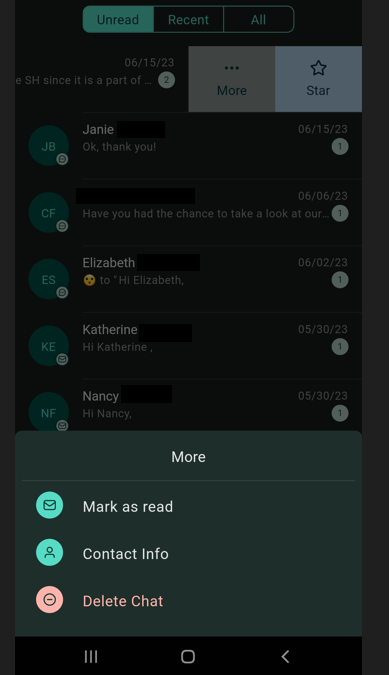
1. In the Unread section, slide the message to the left.
You will see options "More" and "Star".
Click "More" and you'll see the option "Mark as read" below your screen.
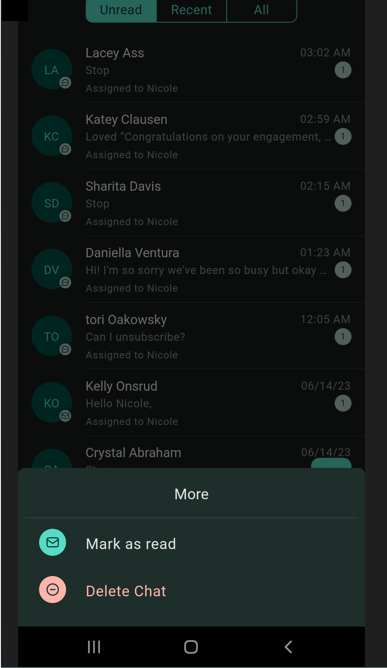
2. In the Unread section, Long press the bubble with the contact's initials.
Options will appear below your screen. Select "Mark as read"
DESKTOP
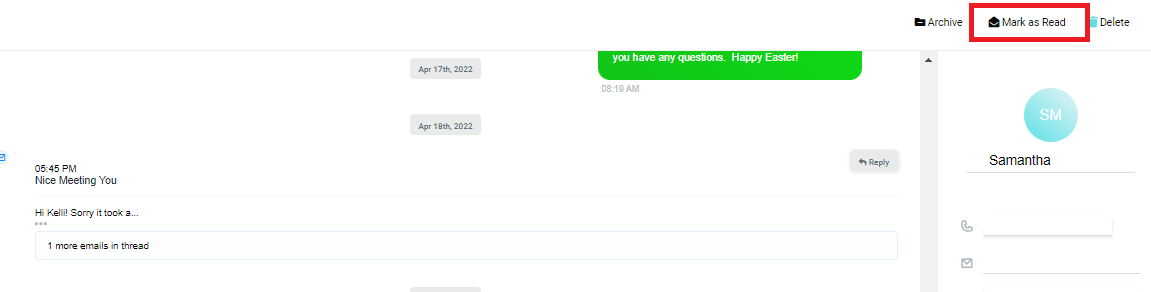
To mark a message or conversation as read or unread on the desktop version, click the envelope button titled "Mark As Read" in the top right corner. The "Mark as Unread" button will be in the same place.